Windows
numgeo for Windows is compiled using Intel OneAPI and Visual Studio and relies on libraries such as MKL or OpenMP. The steps for installing these dependencies on the target system are given below.
Note
Installing Intel oneAPI requires substantial disk space. If the entire toolkit is installed, it requires approximately 20 GB. It is therefore important to select only the required components, as described below. With these settings, the required space is reduced to approximately 13 GB. Intel oneAPI and Visual Studio are not required to use numgeo because a portable version is available. A complete installation also enables user-defined routines.
The installation steps are as follows:
- Optional: Install Visual Studio as described here
- Install oneAPI Base Toolkit following the procedure given in this section
- Install oneAPI HPC Toolkit following these instructions
- Optional: Add numgeo to your system path as described below
- numgeo is now ready to use
Windows 11
The Windows 11 executable was created using Intel Visual Studio Community 2022 Version 17.6.4 and Intel OneAPI 2023.1.
This executable was also successfully used on
- Intel Visual Studio Community Version 2022 17.7.0 and Intel OneAPI 2023.2.
- Intel Visual Studio Community Version 2022 17.7.7 and Intel OneAPI 2023.2.
- Intel Visual Studio Community Version 2022 17.4.0 and Intel OneAPI 2022.2.1
Visual Studio
Visual Studio (Community) is free to use and can be downloaded here.
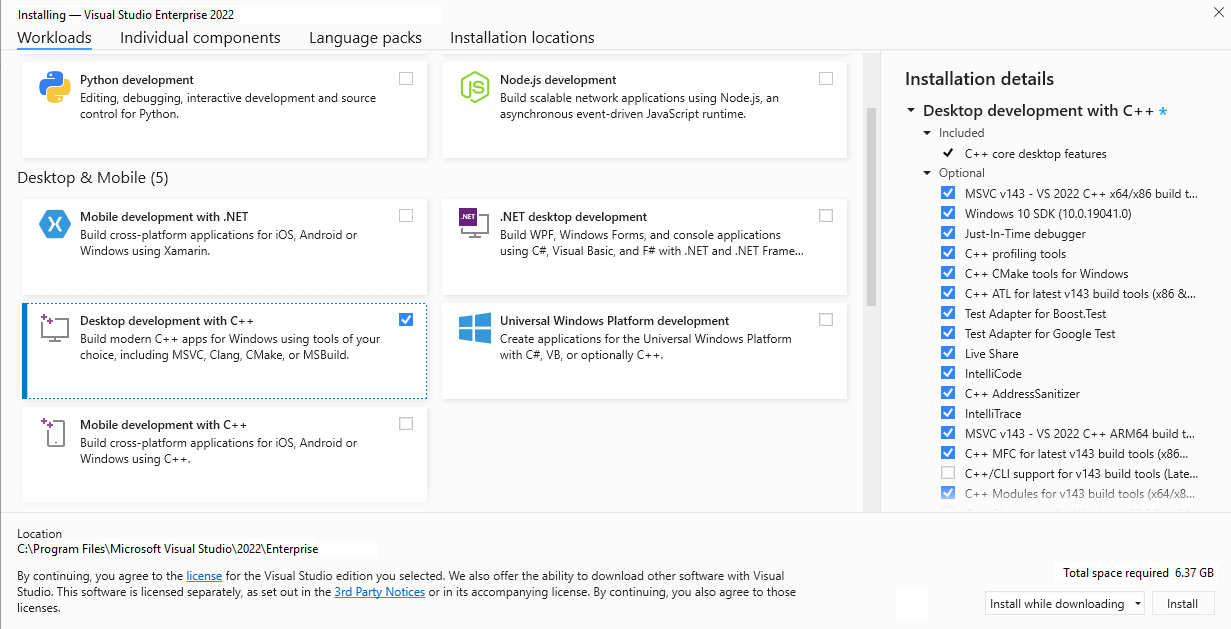
When installing Visual Studio, make sure to install "Desktop development with C++"
oneAPI Base Toolkit
The oneAPI Base Toolkit can be installed either using the Graphical User Interface (GUI) or using the package manager apt. I used the GUI with the following steps:
- Download the oneAPI Base Toolkit from here
-
Installation Windows:
i. Launch the installer with administrator rights
ii. Follow the installer instructions, but choose "Custom" installation. The only packages required are:
- Intel® oneAPI DPC++/C++ Compiler
- Intel® oneAPI DPC++ Library
- Intel® oneAPI Math Kernel Library
- Intel® oneAPI Threading Building Blocks (not sure, maybe we can skip this one if not required by other module)
- Intel® Distribution for GDB*
- Intel® Integrated Performance Primitives
- Intel® VTune™ Profiler
- Intel® Advisor
oneAPI HPC Toolkit
The oneAPI HPC Toolkit can be installed either using the Graphical User Interface (GUI) or using the package manager apt. I used the GUI with the following steps:
-
Download the oneAPI HPC Toolkit from here
-
Installation Windows:
i. Launch the installer as administrator
ii. Follow the installer instructions, but choose "Custom" installation. The only packages required are:
- Intel oneAPI DPC++/C++ Compiler (the installation from the Base Toolkit will be extended)
- Intel® Fortran Compiler
- Intel® Fortran Compiler Classic
- Intel® Inspector
- Intel® MPI Library (I think currently not needed, but in future)
- Intel® Trace Analyzer and Collector (I think currently not needed, but in future)
Adding numgeo to your system path (optional)
You can add numgeo to your system path. This allows you to run numgeo without placing the executable in the simulation directory every time. To add numgeo to the system path perform the following steps:
- Create a folder numgeo
- Inside this folder create a folder bin
- Place the numgeo executable in numgeo\bin
- Move the parent folder numgeo to the root of the C drive or the folder of your choice
- Type system variables into the search bar and click the Edit the system environment variables option
- Under the User variables section, select Path and click the Edit button
- Choose New from the side menu
- Add C:\numgeo\bin to the empty field and confirm changes with OK