Step manager
The step manager is a view of the Steps branch of the data tree, built for working with the sequence as a whole rather than one step at a time. It reorders steps, activates and deactivates them, renames them and changes their analysis type, and edits the time settings of the selected step.
Both act on the same data, so a change made here appears in the tree and the other way round. What the manager adds is the overview: the whole sequence visible at once, with the execution path drawn.
Open it with the  button in the
numgeo toolbar, or from numgeo → Manager → Step.
button in the
numgeo toolbar, or from numgeo → Manager → Step.
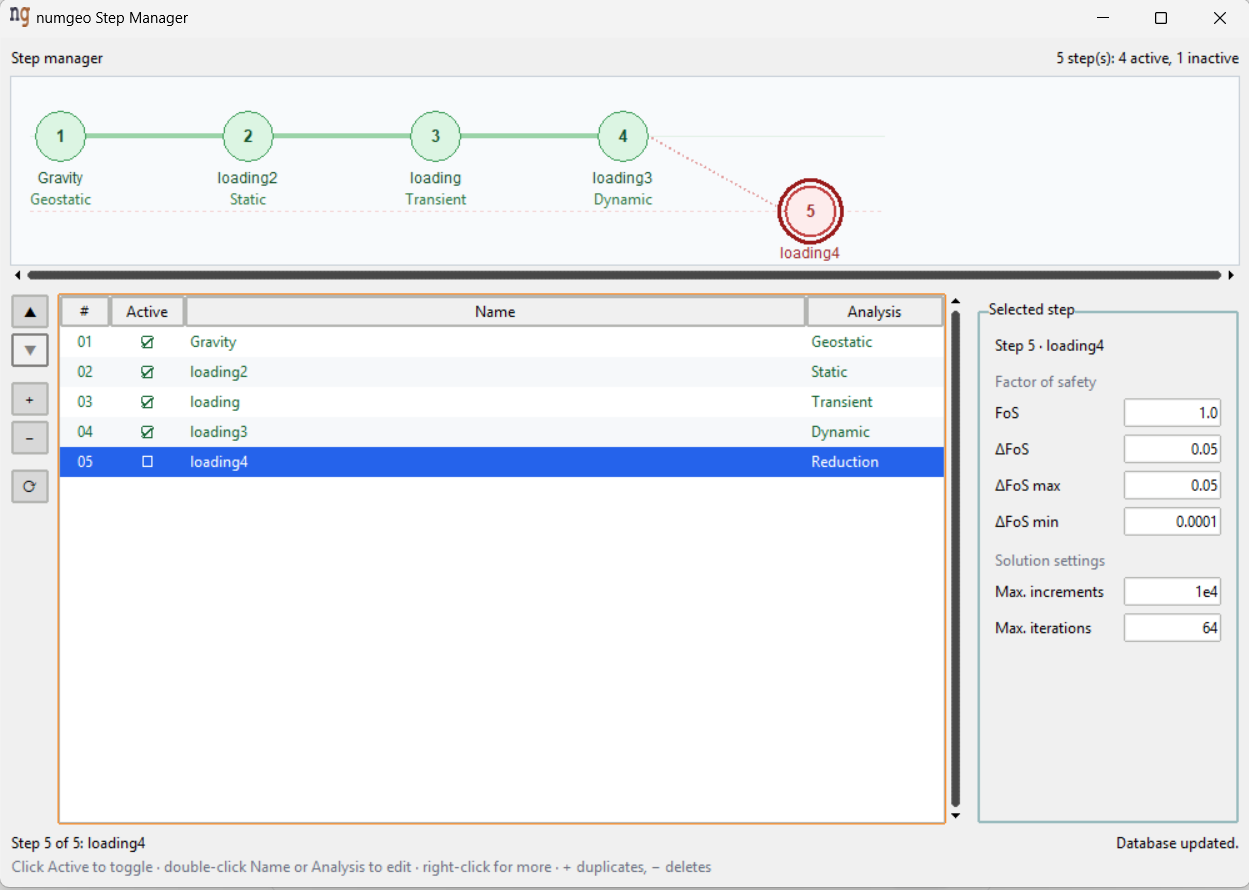
Timeline
The flow chart across the top draws every step as a numbered node with its name and analysis type.
Active steps sit on the upper lane, inactive ones drop to the lower lane. A solid green line joins the active steps in the order they will run, and it jumps over the inactive ones — so a sequence with steps 4 to 6 deactivated shows the path running 3 → 7 directly. Dashed red links show where a step has been skipped.
That line is the point of the timeline. It is the calculation as it will actually run, rather than as it is listed.
Clicking a node selects that step; double-clicking one renames it.
Step table
Below the timeline, the same steps as a table with four columns.
| Column | Editing |
|---|---|
| # | The position in the sequence |
| Active | Single click toggles it |
| Name | Double-click, F2 or Return opens an inline editor |
| Analysis | Double-click opens a drop-down |
Active steps are shown in green, inactive in red, so the state is readable without checking the tick.
Reordering
Steps run in the order they appear, so reordering changes the analysis.
Three ways to do it: drag a row to its new position, use Ctrl+Up and
Ctrl+Down, or use the ▲ and ▼ buttons in the strip beside the table.
The strip and the context menu
The narrow strip left of the table holds five actions:
| Action | |
|---|---|
| ▲ | Move step up |
| ▼ | Move step down |
| + | Duplicate the selected step |
| − | Delete the selected step |
| ⟳ | Reload the steps from the data tree |
Right-clicking a row offers the same actions plus Activate / Deactivate, Rename and Change analysis type.
Duplicate copies the step with all its settings, names it "… copy", places it directly after the original and opens the name for editing straight away.
Selected step
The panel on the right edits the settings of the selected step. Which fields appear depends on its analysis type:
| Group | Fields | Shown for |
|---|---|---|
| Time integration | Step time, Δt initial, Δt min, Δt max | Static, Transient, Dynamic |
| Dynamics | Scheme, α (damping) | Dynamic |
| Factor of safety | FoS, ΔFoS, ΔFoS max, ΔFoS min | Reduction |
| Solution settings | Max. increments, Max. iterations | all types |
Scheme is Hilber-Hughes-Taylor or Backward Euler, and α appears only
for Hilber-Hughes-Taylor.
A geostatic step has no time settings, and the panel says so.
Values are committed on Return or when the field loses focus, and Escape
restores the previous value. A non-numeric entry is rejected with a warning.
The remaining step settings — boundary conditions, loads, outputs, solution controls — stay in the data tree. The manager covers the sequence and the time settings, not the whole step.
Deactivating a step
Setting a step inactive keeps its definition but removes it from the calculation. It is the way to try a sequence without deleting anything: run the analysis without the excavation stage, then switch it back on.
The header reports how many steps there are and how many of each kind, for instance 7 step(s): 5 active, 2 inactive.
Keyboard shortcuts
| Key | Action |
|---|---|
Space |
Toggle active |
F2 or Return |
Rename |
Ctrl+Up / Ctrl+Down |
Move up / down |
Ctrl+D |
Duplicate |
Del |
Delete |
Escape |
Cancel the current edit |
Rules
Step names must be unique, must not be empty, and must not contain commas or line breaks.
The last remaining step cannot be deleted.
Warning
Deleting a step is not undoable, and conditions elsewhere that refer to it by name have to be updated by hand. The confirmation dialog says so; read it rather than clicking through.